Wednesday, August 14, 2013

Avoiding "blowed up" speakers!

Several years ago I finally got around to installing my dual-band FM transceiver in my car permanently and in so-doing, I put a speaker in a location under the dash where one might have been had it not already been factory-equipped with in-door speakers.

The radio, a Kenwood TM-733, resides under the back seat and is "remoted" to its control head, microphone and speaker with several cables.  Under the dash, the speaker is about 3" diameter and rated for 3 watts RMS, 4 watts maximum at 4 ohms (Jameco P/N:  99996) and I figured that I would be OK as that was more-or-less the radio's audio amplifier rating - plus I had the resistance of the fairly long run of wire to the speaker, as well.

After about a year, the speaker quit.

"Bad luck", I assumed as I replaced it with another, identical model, but just a few months later that speaker quit, too and it, like its predecessor, suffered an open voice coil.

With speaker #3 in hand I was determined that I wasn't going to let this happen again.  Since I couldn't really fit a larger, higher-power speaker at that same location I needed to protect it somehow.

The most obvious answer to this would be the use of a series resistor.  I figured that something in the 3-8 ohm range (at 3-5 watts) would probably do, so I temporarily tried several values in line to judge the effects. While still fairly loud, this extra resistor did make a pretty good dent in the volume and I was worried that I'd have trouble hearing a "quiet talker" on the radio while driving down the road with the windows open.

Another option:  A light bulb in series!

Rummaging around in my box of light bulbs I tried almost everything in there.  When I would test a light bulb I would first try it at a low volume, listening for the difference when temporarily shorting out the bulb and I would then turn up the volume all of the way and then temporarily short out the bulb again, noting the difference in volume.

In my tests I concentrated on 12 volt lamps as this approximately matched the amount of voltage swing for which the radio's audio amplifier was capable since it, too, was running from 12 volts.  In briefly experimenting with a small 6 volt lamp (such as a #47) it would not only glow too brightly on audio peaks - making me suspect of its potential longevity - but its small filament and relatively low current ratings meant that it had a lot more resistance and that made the audio far too quiet for my needs.  "Smaller" 12 volt automotive light bulbs (such as the "wedge" types often used for instrument panel lighting in cars) would glow more brightly at full volume, but either had what I considered too much effect at low volume, or seemed too "aggressive" in reducing the volume for loud audio.

Finally, I settled on a common 1157-type tail light bulb - the type with two filaments.  Trying each filament in turn (and in series) I determined that the "taller" filament by itself worked best for my purposes so I soldered short wires to it and glued it to the backside of the plastic trim that held the speaker using RTV (silicone) adhesive.  In my case the 1157 bulb had only a very slight effect on "quiet" audio, but made a rather marked difference on very loud, ear-splitting audio.

 
The speaker and its light bulb protector - an 1157 bulb - wired in series with its voice coil and secured in place with
RTV ("Silicone") adhesive.  Note that in this picture, the filament (the taller of the two contained within the bulb)
is actually glowing slightly - this, from the radio running open squelch at full volume and blasting noise.
Click on the image for a larger version.

After thinking about it for a while one of the problems that likely led to the speakers' failures was that it's common to run the volume up all of the way - either to overcome road noise or, more likely, because someone on the radio isn't talking very loud.  When this person un-keys there is often a very load burst of noise (the squelch tail, a.k.a. "kerchunk") and/or another person will talk in a more normal voice - either one being much louder!  Rather than "ride" the volume control all of the time I would just put up with these bursts of extra loudness, and there was no doubt that this was likely how the speaker got "stressed" and damaged.

The light bulb has the advantage that at low volumes, the filament's resistance is quite low and will have relatively little effect.  If the audio gets very loud, however, the filament will start to light up and its resistance will go up, reducing the amount of power reaching the speaker and in this manner it not only offers a degree of protection to the speaker, but it also reduces the volume of very loud audio (sort of like an "AGC" - Automatic Gain Control circuit in a radio) without affecting "quiet" audio to a significant degree!

While the first two speakers lasted about a year and a half total, the newer speaker (which is the same model as the first two) has lasted 3-4 5-6 years and counting!

Note: I have since replaced the old, aging TM-733 with a newer TM-V71a with about the same audio output power:  The same, old speaker with the light bulb in series is still working fine!

[End]

This page stolen from ka7oei.blogspot.com

Monday, August 5, 2013

A circularly-polarized, "omnidirectional" antenna

The idea of s circularly-polarized omnidirectional antenna is a bit hard for some folks to wrap their heads around, but they are quite common:  Antennas used on GPS receivers are circularly-polarized and have a more-or-less hemispherical response so that they "see" the sky, but not as much of the ground.

What is circular polarization, anyway?

If you are familiar with the propagation of radio waves you are likely familiar with "linear" polarization - that is, just like the "waves" that you can produce in a piece of rope that you move up and down, their peaks and troughs "move" only one direction.  While any direction may be used for this movement it is quite typical for an antenna to be oriented such that this wave is oriented vertically - as in the case of a so-called "vertical" antenna (such as a whip) or horizontally, as is the case of many TV antennas.  In each case the selection of vertical or horizontal is mostly a matter of being able to conveniently mount that particular type of antenna.

As it turns out, if you have a signal emitted by a vertical antenna and try to intercept it with a horizontal antenna, very little of it is likely to be intercepted - particularly if the antennas are exactly 90 degrees apart from each other.  Quite like the darkening of an LCD watch or LCD computer monitor when looking at it through polarized sunglasses and one tilts one's head just right, the "cross-polarized" antennas just won't intercept each other's energy.  One oft-quoted figure with cross-polarization is that the signal is reduced by 20dB (e.g. 99%), but the amount of diminution can be much greater (e.g. lower signal) that this if things are carefully adjusted.

In addition to this "linear" polarization (e.g. horizontal, vertical) there is "circular" polarization in which the signal (radio frequencies or even light) "screws" through the air as if it were a threaded bolt and as with nuts and bolts, one can cut the threads to be either "right handed" (as are most nuts and bolts) or "left handed".  Just like with nuts and bolts where you cannot thread a right-handed nut onto a left-handed bolt (or vice-versa) a "right-handed" antenna cannot efficiently receive a signal that was emitted via a "left-handed" antenna on transmit.

For an interesting, graphical illustration of both linearly and circularly-polarized wave fronts see this YouTube Video:

http://www.youtube.com/watch?v=Fu-aYnRkUgg 


Why did we need a circularly-polarized antenna?

In 1999 I helped Glen, WA7X, put together some propagation beacons for the 6 and 2 meter amateur bands.  Initially using simple "J-Pole" antennas - since they were cheap and easy to construct - we knew that we had a problem:  These beacons were intended to be used as an aid to discern propagation (e.g. band openings) and were likely to be used by stations equipped for weak signal operation, it was likely that the fact that we were using a vertically-polarized antenna would be of detriment to those for which the signals were intended as those equipped to receive weak CW and SSB stations have typically used horizontally-polarized antennas!

What this meant was that an already-weak signal could seem to be even weaker with this cross-polarization - a definite problem!  Practically speaking, in conditions such as ionospheric reflection and meteor-scatter - just to name two possibilities - it was likely that the polarization would be effectively randomized from the viewpoint of the receive station, but this also meant that even if you were using the same polarization of antenna as the transmitter you could, under some conditions, experience fading as the polarization of the signal was randomly changed along the path to be opposite of your antenna.

While we initially considered the use of a horizontally-polarized omnidirectional antenna, it turns out that there are relatively few practical designs for these for 6 and 2 meter operation - and that would still leave the problem of random polarization changes with propagation, so we considered circular polarization as a novel solution.

If a circularly-polarized signal is received via a linearly-polarized antenna, half the signal is lost, but it doesn't matter whether that receive antenna was vertical or horizontal.  While always losing half of the signal isn't inconsequential, it is certainly far preferred over losing most of the signal - which is what would happen if one received a horizontally-polarized signal via a vertically-polarized antenna and vice-versa!

In our research for candidates of omnidirectional antennas that were also circularly-polarized we considered several possibilities such as the Turnstile - link and the Quadrafilar Helix - link, but we were intrigued by a type of antenna that had long been used in the FM broadcast industry - the "Cycloid Dipole."


The "Cycloid Dipole"

Figure 1:
A typical "Ring and Stub" Cycloid Dipole
as viewed from slightly "below" the antenna.

In Figure 1 one may see a typical "Ring and stub" antenna of the sort that has been used by FM broadcasters in the past.  Consisting of two vertical stubs fed by semicircular rings, it's an odd-looking antenna and while it may be clear that it contains both horizontal and vertical components to radiate a signal, it may not be obvious how this combination of elements imparts a "spin" on the transmitted signal.

Note:  The "Ring and Stub" antenna isn't widely used for very high-power FM broadcasting these days but occasionally shows up in older installations or with low-to-medium power transmitters.

In extremely simplified terms, one can "spin" a signal by feeding vertical and horizontal sections slightly out of phase (e.g. a delay) - a trick applied to "crossed Yagi" antennas that are often seen for satellite communications on the 2 meter and 70cm bands and a property demonstrated nicely in the video linked above.  In those antennas, the "vertical" and "horizontal" elements themselves are spaced apart from each other, but there is also a bit of extra delay provided by carefully-measured feedlines that split the signals that are delivered to the crossed Yagis' driven elements and the combination of these two signals effectively imparts a spin on transmitted signals and "de-spins" received signals.

In the case of the Cycloid dipole this "delay" is provided, at least in part, by the length of the horizontal ring section.  By carefully selecting the lengths and dimensions, one may not only provide the necessary amount of delay, but also control how much "horizontal" signal is being radiated by different portions of the ring - and the vertical by the vertical stubs - so that not only are the "vertical" and "horizontal" aspects of the emitted signal equal, but also omnidirectional and with circularity rather simply radiating both vertical and horizontal signals at the same time.

As it turns out this sort of antenna isn't really omnidirectional - a term that would imply equal radiation in all directions, both horizontally and vertically.  In the case of this antenna it is "omnidirectional" and circularly-polarized only at low elevations rather than at high angles above or below the plane of the antenna:  In these "other" directions (above and below antenna) the amount of radiated signal drops off and the tendency for circularity falls apart, too.  Since we are generally interested in emitting signals (more or less) at or near the horizon rather than overhead, this limitation actually affords us a slight amount of gain since we aren't radiating as much signal in those directions needlessly (e.g. skyward and groundward) and power may be directed more along the horizontal plane where it will actually do some good!  For beacon use where ionospheric reflections may be the cause of long-distance propagation, the low angle of radiation of this antenna is still a reasonable match for the incident angle of the signal's path as well.

An interesting property of circular polarization is that any reflection of the signal will flip the sense of the rotation.  Specifically, any odd number of reflections (1, 3, 5 etc.) will flip a Left-Hand signal into a Right-Hand signal while an even number of reflections (2, 4, etc.) will produce the same as the original when the signal is "re-flipped."  Why this happens can be demonstrated if one looks at the threads of a bolt in a mirror:  The careful observer will note that in the reflection, the bolt suddenly becomes left-hand threaded if it had previously been right-hand threaded!  What this means is that odd-order ionospheric hops will flip the rotational sense as will odd-ordered reflections from mountains and buildings.

If you are receiving a circularly-polarized signal on a linear antenna this will be of little importance (other than the 3 dB loss intrinsic to the circular-linear "mismatch") as it won't "care" which way the signal spins and in this way, almost nothing that propagation can throw at the signal emitted by this antenna will result its diminution at the receive antenna because of a polarity mismatch.

If, however, you are receiving the signal with a circularly-polarized antenna, the rotational sense will matter, but since very few of those interested in weak signal CW/SSB work on the VHF bands routinely use circularly-polarized antenna for such activity, most operators will not experience a problem!  If you wish to minimize the signals from reflections, receiving with the same rotational sense as the transmit antenna will help attenuate them, but if you receive with the opposite sense, you will likely be more sensitive to signals received via reflection!

(Note:  This trick is often used in RADAR when you want to discriminate all but the first reflection as much as possible.  By using a transmit antenna that is opposite the receive antenna in rotation, signals from even-ordered bounces are suppressed.)

Replicating the Cycloid Dipole:

When it comes to replicating the "Ring and Stub" configuration the difficulties involved in trying to bend a piece of metal tubing to a precise radius preclude its being constructed by the average antenna builder so it was decided to attempt a modeling of the antenna built with orthogonal components such as straight pieces of copper tubing and 90 degree elbows.  Using the NEC2 program, the original circular "Ring and Stub" configuration was first modeled and verified (in software) before it was converted to square dimensions.
Figure 2:
Cycloid Dipole using "square" design elements.
After some trial and error the simulations began to reveal that it was, in fact, possible to design an antenna that exhibited good properties of omnidirectionality and circularity using "square" elements in the form depicted in Figure 2. As can be seen, it follows the general form of the "Ring and Stub" in Figure 1 but is much easier to construct!

At this point it should be noted that an antenna of this sort is not resonant anywhere 50 ohms resistive at the operating frequency so it was necessary to feed it with a matching network that was both low loss and capable of matching awkward resistance and reactance values to 50 ohm coax.  While several possible configurations were considered, we settled on a balanced 1/2 wave stub using the two pieces of copper water pipe as a balanced line - a configuration that is capable of matching nearly anything!

Comment: 

There are online descriptions of this sort of antenna using other types of matches, such as a "Gamma" or other "shunt" type match.  In simulations, while these sorts of matches will provide a 50 ohm impedance, they appear to upset the symmetry and current distribution along the elements and if applied to an antenna built to the dimensions given below they will likely result in it having something other than omnidirectional, circularly-polarized signal radiation!  If such a feed technique is used, the geometry of the antenna must be reworked to assure that it provides the desired radiation properties!

Since the symmetry of the antenna's radiation was considered to be important, and since it was considered important that the feedline itself should not radiate, the matching network itself is balanced using a coaxial delay line.  Most importantly, this stub matching network is about as low-loss a matching network as can possibly be built using common materials and it is fairly forgiving  in its operation provided that it be constructed rigidly enough that the spacings of the various components be maintained and, as can be seen in Figure 2 and Figure 3, it is protected somewhat from the elements - namely, the buildup of ice and snow.  Also note that this matching network is "folded" on itself to reduce its overall size and to partially counter-balance the weight of the antenna on its mounting.

Figure 3:
The as-built prototype 6-meter (upper) and 2 meter Cycloid Dipole (lower)  that has been in service
since 2001 on the WA7X 2 meter beacon. Most of the "antenna" isn't really the antenna at all, but
the 1/2 wave matching network!
Click on the image for a larger version.
Figure 3 shows this antenna, constructed using 1/2" copper water pipe and fittings.  As can be seen it has been mounted atop a piece of large-diameter PVC pipe and a piece of acrylic plastic has been attached (with UV resistant wire ties and RTV adhesive) to cover the matching section to protect it from the buildup of ice and snow which would detune it.  Barely visible in the pictures are copper clamps that are soldered to the feed portion of the antenna as it passes over the open top of the PVC support pipe that are screwed in place to hold the antenna in position.

Originally, this antenna was considered to be "temporary" but it has continued to function perfectly and remain intact despite the fact that it has been in use for well over a decade (since 2001) at this remote, 8500 foot (2600 meter) elevation mountain site, exposed to high winds and heavy snow!

Note:  Initially tuned before installation of the show shield and atop the PVC mast, a slight readjustment of tuning was required afterwards to restore a <1.2:1 VSWR due to the slight changes in dielectric loading by the proximity of the the mast and acrylic cover.

"Testing" the antenna:

Without a proper antenna range for testing and evaluation we have had to satisfy ourselves with computer simulations and field observations of how it seemed to behave under various circumstances.  From our in-field observations, the antenna appears to be quite omnidirectional and when using switchable left/right antennas on receive it also seemed to have reasonably good isolation between the two polarity senses.

The original modelling was done using NEC2 - a rather awkward and user-unfriendly program, but subsequent modeling was also done using other programs:  I have also used MMANA (which doesn't "know" about circular polarization, but will still show horizontal and vertical radiation components) as well as by others using variants of NEC4.  The upshot of all of these simulations is that they all agree that this antenna appears to be fairly well-behaved and works more or less like it says "on the tin."

One fact with any antenna is that a feedline and mounting hardware is going to be required and the antenna will also be mounted within a finite distance of the ground.  Since these imply some sort of conductive medium within fairly close proximity to the antenna it is inevitable that the pattern will be altered from that of the ideal antenna in free space and as such it is likely that an in-situ analysis of this antenna, along with its matching network and feedline and location above an imperfect ground, will yield a rather skewed pattern.  Since we can only do "the best we can" we often just live with the alterations in performance and patterns that inevitably result in these real-world installations!

The two major effects of real-world installations are the fact that the feedline and metallic mast (if used) will inevitably skew the omnidirectionality of the pattern somewhat while placing any antenna over a real ground at a finite distance will not only cause the pattern of RF radiation to be shifted upwards by a few degrees, but also introduce many vertical lobes in the response.  Again, these really can't be avoided in the real world!

Dimensions of the antenna:

As of the time of this writing, only the 2 meter version has been extensively tested, but a 50 MHz version was also derived at the time that the original NEC2 simulations were performed and details of the construction of both the 2 meter and 6 meter versions may be seen in Figure 4, below:

Figure 4:
Dimensions of the 6 and 2 meter versions of the antenna.
Click on the image for a larger version.

Comment:  Not shown in Figure 4 are the details of the 1/2 wave balanced matching network, but this information may be found in any version of the ARRL Antenna Book and in other literature.

It is worth noting that if built as depicted in Figures 3 and 4 the antenna will exhibit LHCP (Left-Hand Circular Polarity) but this may be changed simply by switching which vertical element (e.g. elements "D" in Figure 4) is up and which is down.

Comments:
  • This particular antenna design does not lend itself well to wideband signals such as TV owing to its rather limited bandwidth.  If it were used for FM broadcast, it would have to be modeled and constructed for the specific frequency to be used.
  • Because the antenna's dimensions do not easily scale with frequency, producing a design that will work properly at other frequencies (such as FM broadcast) will likely require careful modeling with the appropriate antenna design software - which would take a fair amount of time.  Because of this, I CANNOT honor requests for"custom" frequencies!  Since these tools are readily available and free it should be possible for you to extrapolate this design for your needs.
  • The use of a stub-type matching network (e.g. using the same copper pipe as that of which the antenna is constructed) is recommended over using lumped-constant components such as individual capacitors and inductors, particularly if more than a few watts of power are to be used.  The losses, currents and voltages involved - not to mention the susceptibility of such components to weather - can create significant challenges in terms of both losses and durability!
Both the 6 and 2 meter Cycloid Dipoles, installed and in use - read more about the new(er) 6-meter Cycloid dipole at the link below.
(Are there any other 6-meter, circularly-polarized beacons in the world?)
Click on the image for a larger version.

In the fall of 2015 a 6 meter Cycloid dipole dipole was installed - read about the "new" antenna here - link

For more information about the antenna visit the WA7X Cycloid Dipole page - link which contains a bit more information about these antennaa, their construction, and the results of various simulations.

[End]

This page stolen from ka7oei.blogspot.com

Friday, July 5, 2013

A "simple, effective, yet inefficient" solar charge controller.

A friend of mine had an immediate need for a way to safely charge a lead-acid battery from a 29 volt solar panel.  Because it was the evening before he was to leave - and there was NO WAY to get a commercially-made controller either via post or from a local source - he asked me to throw something together in a hurry.

This was in preparation for a week of vehicle camping while providing enough power for a CPAP machine or two and to keep cell phones and cameras charged, but because the use of a generator was not allowed, charging the battery that way was just out of the question.  The power usage of the CPAP machine was rather significant (1-2 amps while running) so a fairly large solar panel - and a decently large storage battery - was required in order to maintain a positive energy budget over the period.

A quick back-of-the-envelope calculation showed that for 8 hours of operation of a single CPAP machine and the charging of a cell phone, at least 30 watts of available energy would be required, taking into account the charge efficiency of a typical battery and the fact that whatever panel one chose it would, on average, only produce about 60% of its peak power during daylight hours - assuming a nice, clear southern view of the sky with minimal obstruction toward the east or west and the occasional cloudiness.

To that end, he obtained a 215 watt solar panel at a very good price - much more than twice the capacity than what was actually needed, but it was likely to provide the energy budget even on a cloudy day - were it used efficiently.  Again, on such short notice a suitable charge controller that could handle the panel's output (about 9 amps at 29 volts) wasn't available.  Very quickly I saw that without a highly-efficient (switching-type MPPT) controller I would be able to utilize less than half of the panel's wattage, but it looked as though there would be more than enough current.

"What if I were to use this with a '12 volt' panel?"

That would be preferable, of course!  The panel that my friend obtained would not only be usable for this particular outing, but for future plans on a small solar energy farm at his home.

If one were to use the described charge controller with a "12 volt" solar panel (e.g. one with an open-circuit voltage of about 16-20 volts instead of around 39 volts) that would place the "optimum" power point of the panel closer to 14-16 volts.  In this case, this sort of simple on/off controller would be be able to capture much more of the panel's total available power since the "voltage mismatch" between it and the battery would be far less.

Read more about "optimum power", below.
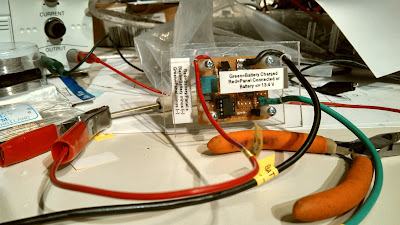
Figure 1:
The charge controller with connecting leads.

Controlling current flow without heat:

Here's the thing about efficiently switching current on and off:  If you have a switch, you need to have it firmly "on" so that the current flowing through it doesn't generate heat due to resistance - and a high-current power FET will do this nicely.  The one that I chose had no more than 0.02 ohms of "ON" resistance and with 10 amps, this would produce a measly 2 watts of heat.  Conversely, when the FET is off it isn't passing any current at all so it isn't even thinking about getting hot.

It's in that "in-between" state that the problem lies:  If there is resistance - say, from the FET not being turned on fully - it will immediately get hot and if one can't get rid of that heat, it will be destroyed.  One must switch the FET on and off quickly so that it spends as little time in that "in-between" state as possible.

On my first version of this controller using a TL431, this could happen fast enough that the FET was being turned on/off very quickly, spending too much of its time midway between "on" and "off" and getting hot.  After a few initial attempts to slow things down with the addition of some capacitors and adding a bit of hysteresis using a few resistors, I realized that in order to make it work it would have to get more complicated, so I decided to scrap the initial version for something "simpler."

Instead, I would use a computer!  See the diagram in Figure 3.

At first glance it would seem that the use of a computer was not going in the direction of avoiding complexity, but standing back for a moment let's take a look at what is needed for a simple PIC microcontroller-based solar charge controller:
  • A PIC.  I would use the 8-pin PIC12F683 which has an onboard A/D converter, watchdog timer and clock oscillator.
  • A voltage regulator.  To allow the PIC to run from the 12 volt battery being charged, I would use a 78L05 to provide 5 volts which I would also use as a voltage reference.
  • A power FET.  This would be used to connect/disconnect the solar panel from the battery, depending on the state-of-charge (voltage) on the battery.
  • A status LED.  Just because I could, I decided to use a red/green LED to indicate that the unit was powered up and actually doing something.  Separate LEDs could be used if that's all you have.
  • Other circuitry.  There was a 10-turn potentiometer for voltage calibration, a pair of transistors to drive the FET and a few miscellaneous resistors and capacitors.
The real magic was to be done in software and I decided to make it work like this:
  • Measure the voltage on the battery.
  • If the battery voltage is above 13.8 volts, disconnect the solar panel from the battery and make the status LED glow green.  Wait for at least 1/2 second before doing anything else - such as reconnecting the solar panel for additional charging.
  • If the battery voltage is below 13.2 volts, connect the solar panel to the battery and wait for at least 1/1000th of a second before doing anything else to the battery.  When in this state, make the LED glow red for at least 1/20th of a second (even if the battery was disconnected 1/1000th of a second later) so that even a brief flash would be more visible.
  • Every 5 seconds, the charging switch (FET Q3) would be opened very briefly and the device will measure the solar panel's open-circuit voltage.  If it was too low - which would happen if there was no sun - the unit would stop charging and indicate this to the user by briefly flashing the LED yellow every 2 seconds.
In other words, the unit could immediately (after 1/1000th of a second) disconnect the solar panel from the battery if the voltage on the battery were above the "full charge" voltage, but it would wait for at least 1/2 second before deciding to reconnect the solar panel if the battery were too low.   

(Note:  Practically speaking, R1/R2 and C3 slow the response to the changing voltage somewhat so it probably doesn't respond quite as fast as 1/1000ths of a second.)

Figure 2:
A close-up view of the controller in its protective case.

The reason for the immediate response if the voltage were on the high side would be to minimize the time that the battery and/or the equipment connected to it was exposed to voltages that might be in excess of, say, 14 volts.  If the battery to which the unit is connected, this is unlikely since the capacitance of the battery alone - not to mention the electrochemical processes - would prevent the voltage from increasing too rapidly.

The reason for the 1/2 second delay if the voltage were on the low site would be to allow the battery voltage to settle down when the charging current was removed, but also to prevent the FET from being turned on and off too quickly and too frequently.  As we know from above, if the FET is fully on or off it's not going to generate much heat at all and by minimizing the rate at which it will switch between those states, heat generation can be minimized.

These two thresholds (13.2 and 13.8 volts) weren't chosen by accident.  If a healthy 12 volt lead acid battery ever does reach 13.8 volts, it is guaranteed to be at least mostly (if not fully) charged. If this same battery is allowed to "float" (e.g. no load) at this same charge level, it will take some time to drift back down to 13.2 volts. If the battery still has a bit of charging to do it will rather quickly drop back down to (and below) 13.2 volts - particularly if there is a load.
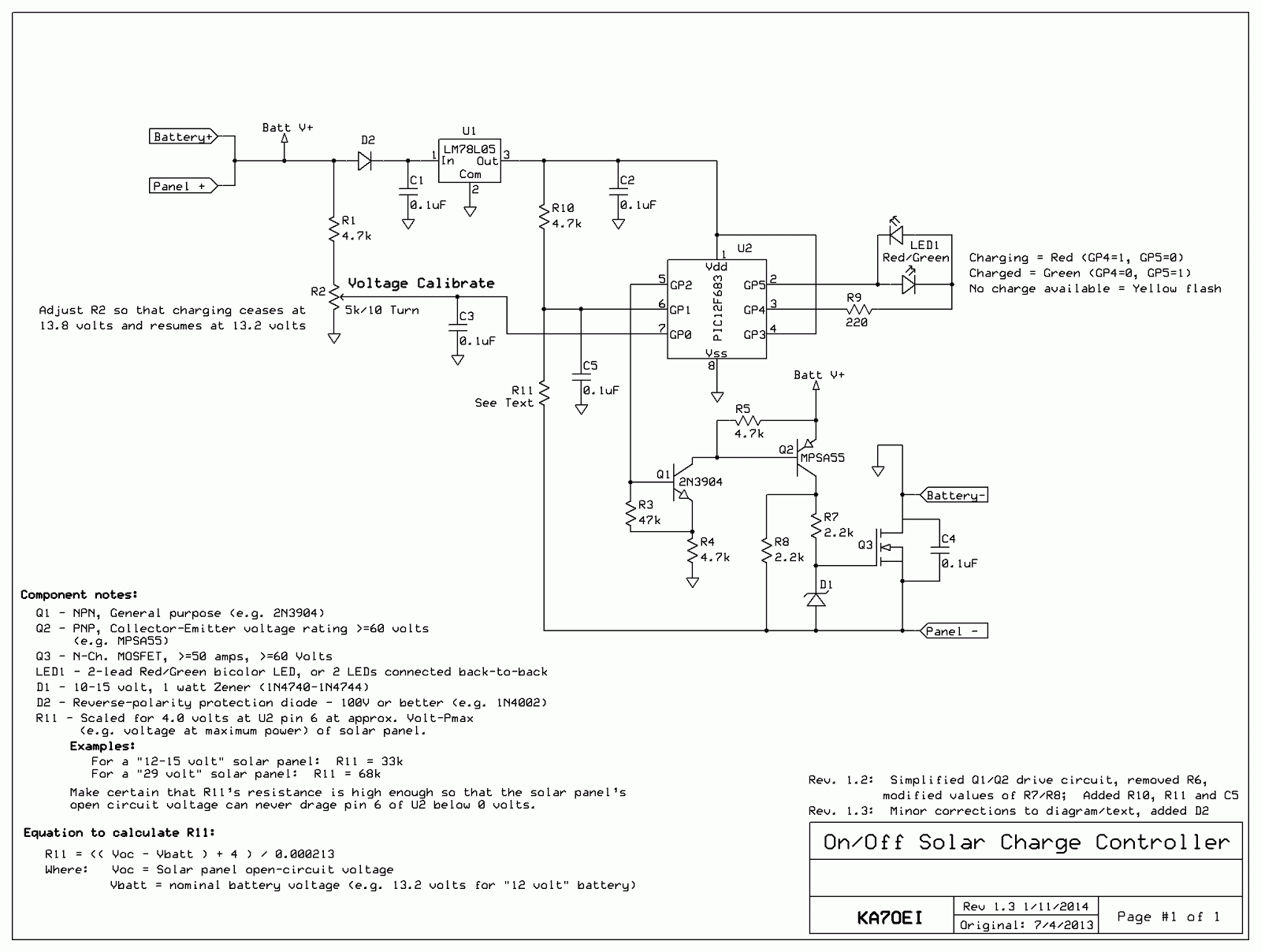
Figure 3.
Schematic diagram of the solar charge controller.  The circuit shown is intended for
"12 volt" (6-cell) lead-acid batteries.
It can be constructed using the PIC12F675 instead - see notes, below.
See notes and text for additional details about this circuit and its use.
Click on the image for a larger version.

So, there you have it, a very simple charge controller!

The .HEX files for programming a processor yourself:

Two .HEX files have been produced:  One for the PIC12F683 as described in the text, and another using the PIC12F675.  These files are NOT interchangeable or likely to be appropriate for other devices.

For the .HEX files, go to the page indicated by the link, below:
  
Web page with .HEX files for solar charge controller  (link)

If you cannot program a processor yourself and are interested in obtaining one, contact me.

Additional comments:

How it's connected to the battery:

As can be seen in Figure 1 large alligator clips are used to connect the battery.  Because the FET switch is in the negative lead, the positive terminal of the battery and the positive terminal of the solar panel are connected together at the battery.  It is recommended that short, heavy leads connect this unit directly to the battery to maximize charge efficiency and to best allow the controller itself to measure the battery voltage:  Long, skinny leads would cause a voltage drop, making the unit "think" that the battery was more-fully charged than it actually was.

A few warnings about the battery connection:

Because there is not extensive protection against high or reverse-applied voltages it is recommended that one connect the charge controller to the battery and then connect the solar panel, and when you are done, do the reverse - disconnect the solar panel then disconnect the battery.

Another extremely important point:  Make certain that the device being powered by the battery is firmly connected to the battery!

Because this device could put the full solar panel voltage across the terminals (in this case, 39 volts) a 12 volt device could be destroyed immediately by over voltage!  If you are using a battery that is in any sort of reasonable condition, this should never happen, but if your battery connections were loose - say, you had alligator clips from the device being powered connected to the battery and you had alligator clips from the charger connected to those clips - and the first set were to accidentally fall off, you could destroy your devices.

It is for this reason that you should always use the "permanent" connections to the battery to connect your devices (e.g. the battery posts.) so that you cannot accidentally have a connection to the solar panel without having the battery in the circuit.

Also, there's no "high-voltage" disconnect to protect the battery and the connected devices should the charge controller accidentally get "stuck" (due to the FET being damaged by lightning, for example) in the "on" state and continually applying current to the battery.  If this were to happen it is likely that the battery could be destroyed by gross over charging and the devices attached to it may be damaged as well.  In this circuit, the FET is reasonably well-protected against such things, certainly not against a very nearby or direct hit!


Explanation of the voltage thresholds:

In software, the battery is connected if its voltage drops below 13.2 volts and is disconnected if the voltage is higher than 13.8 volts:  In between these two voltages, the state is undetermined:  If the voltage had been below 13.2 volts, the panel will be connected (to charge the battery) but if the voltage had been above 13.8 volts, the panel will be disconnected.  Generally speaking, the panel will be connected as soon as the voltage is applied since it is unlikely that a battery that had been sitting for more than a few hours and not connected to a charger as its voltage will likely be well below 13.2 volts.

One could also use this same circuit for charging 6 volt and 24 volt systems as the ratio of the two voltages (on and off) would be correct for lead-acid batteries in this situations, too.  To do this, one may have to select an appropriate value for R1 as well as take into consideration the fact that U1, the voltage regulator, may not operate properly.

For example, at 6 volts unless a low-dropout regulator were used, or one used a different regulator to operate U2 at a lower voltage - say, 3.3-4 volts.  For 24 volts it may be wise to use a regulator that can withstand high voltages (>30 volts) for U1 or put in series with it a 10-15 volt Zener diode, taking care to leave the "top" end of R1 at the battery potential.   If you do change the voltage a which the PIC operates, you'll need to take into account that the voltage scaling resistors (R1/R2 for the battery voltage and R10/R11 used for monitoring the solar panel's open circuit voltage) are appropriately adjusted.

For other types of batteries (e.g. lithium-ion, NiCd or NiMH) this same sort of scheme could also be used, but very different charge-control schemes and voltage thresholds would have to be used to do this safely and this would imply a modification of the code.  Especially if you have several different types of battery chemistries, you may be better off having a small-ish lead-acid 12 volt battery to which these other chargers are connected to function as a low impedance "ballast".

In other words:  Do not use this circuit for any battery types other than lead-acid!

Why switch the panel in/out via its negative lead?

For this design I decided to put the power switching transistor in the negative lead of the solar panel rather than the positive lead and the reason for this is simple:  It was easier to do!

To have put it in the positive lead would have required one of two things:
  • The generation of a "boost" voltage.  I could have used an N-channel FET between the solar panel positive lead and and the battery's positive lead, but I would have trouble driving it.  The reason for this is that in order to turn on an N-channel FET fully, I would need to apply a gate voltage that would be at least 5-10 volts higher than the battery voltage.  Unfortunately, we cannot use the higher open-circuit solar panel voltage for this because if the FET were turned fully on, our solar panel V+ voltage would be the same as the battery V+ voltage.  In order to make this work we'd need to have a circuit that would generate a voltage that was higher than the positive battery voltage.
  • The use of a complementary device.  I could have used an opposite-polarity device such as a P-Channel power FET.  By doing so I could have "pulled down" on the gate/base and turned on the transistor, but there's a problem:  P-Channel FETs are harder to find, a bit more expensive, and typically have higher "ON" resistance than their N-Channel counterparts.  In other words, you can more easily and cheaply find N-channel FETs.
Why use a FET instead of a bipolar transistor in the first place?  Power FETs have the nice property that if you elevate the gate potential far enough "above" the source potential, they essentially turn into a low-loss "on" switch without requiring any drive current.  A bipolar power transistor, on the other hand, would require 1-5 percent (or more!) of the total device current being drawn through its base lead to make it fully conduct, and it would still drop more voltage across it and generate more heat than a FET.

Again, by switching the negative lead of the solar panel I could use a standard N-Channel FET:  Since the source lead of that FET would be pulled down and "away" from the +12 volt terminal of the battery (even to a potential that is negative with respect to the battery minus lead) by the solar panel - and since the PNP driving it was at the battery + potential, we already had a ready-made source of drive voltage for it.

How the circuit works:

U1, a 78LO5 3-terminal voltage regulator supplies a clean source of 5 volts for the microcontroller - and also serves as the voltage reference to determine the charge state of the battery.  The raw battery voltage is scaled first with R1 and then with potentiometer R2, the latter being adjustable so that the "on" and "off" thresholds for charging can be calibrated.

If U2, the PIC12F683 (or PIC12F675) microcontroller sees that the voltage is too low (nominally below 13.2 volts) its sets pin 5 (GP2) high which turns on NPN transistor Q1 which, in turn, pulls "down" on the base of PNP transistor, Q2 to turn it on.  Resistor R4 limits the base current in both Q1 and Q2 while R3 guarantees that if U2's output is in a high-impedance state (such as during startup) that Q1 is turned off by default:  R5 performs a similar function for Q2, respectively as well as speeding up the rate at which it can be turned "off".

When Q2 is turned on, approximately "Batt+" volts (nominally the battery voltage - in the 12-13 volt area) appears at its collector which pulls up on the junction of R7 and R8 which, if the sun is shining, was already at a voltage that is equal to the open-circuit output voltage of the solar panel minus the battery's present terminal voltage:  In the case of the solar panels chosen, the open-circuit, full-sun voltage is around 39 volts so if the battery is at 12.5 volts, the drain of Q3 will have been at -26.5 volts with respect to "ground" - the negative terminal of the battery, or close to the full 39 volts of the solar panel's open circuit voltage.

Pulling the gate of Q3 "upwards" (e.g. making it positive) will turn it on, connecting the negative lead of the solar panel to the negative battery lead.  At this point the gate voltage will drop to about 12-13 volts, but this is sufficient to keep the device chosen fully turned on.  Because the gate-source voltage could conceivably exceed 20 volts or so - the (typical) maximum rating for such a device - at the instant that we turn it on Zener diode D1 in conjunction with R7 form a simple shunt regulator to limit its maximum voltage to a safe level.

Once the voltage rises above 13.8 volts U2, the controller, sets Pin 5 low which turns off Q1 and Q2 and allows R6 to pull Q3's gate voltage down to its source voltage and turn it off, disconnecting the solar panel from the battery.  C4, a 0.1uF capacitor, is placed across the FET so that any "ringing" or transients generated by the FET's being turned on and off are suppressed as well as providing a degree of RFI and static protection.

For this circuit to work properly, Q2 must be rated for the voltages that it will encounter so an MPSA55 was used which has a rating of 60 volts.  Q3 must also be rated for the expected voltage, low "on" resistance and several times the maximum current expected from the panel so a 100 volt, 50+ amp device was used to provide plenty of margin.

The reason for the use of both Q1 and Q2 is so that one can apply the battery voltage to the gate of Q3 when it is "on" to make certain that its resistance (and loss) is as low as possible:  Were Q2 driven directly by U2, we could only attach its emitter to the +5 volt supply and it was turned on, only about 5 volts could have been applied to Q3's gate which, for "normal" N-channel power FETs, may not be enough to drive it into full conduction and minimize its ON resistance.

In looking at Figure 1 and Figure 2 you may note that there is no obvious heat sink on Q3.  In actual operation, with 5-9 amps of current, it ran only very slightly warm but there was plenty of convection coupling (air cooling) as well as heat conduction via the heavy wire (#10-#12 AWG) that was soldered directly to the tab of Q3, its Drain lead which, in turn, connects to the negative lead of the battery.

Added later (after the pictures were taken) is the circuit consisting of R10, R11 and C5.  Forming a voltage divider, this allows the measurement of the voltage across the solar panel when Q3 is turned OFF to determine if there is any usable light falling on the solar panel.  If there is not, the computer will keep the solar panel disconnected and occasionally flash LED1 yellow to indicate that there's presently no power available from the solar panel.  To do make this determination while it is charging (e.g. the LED is red) the panel will occasionally be disconnected for a very brief moment to measure the voltage across the panel.  Of course, if it is not charging (LED is green) it doesn't need to disconnect the solar panel at all to make this reading.

If the panel is being illuminated and Q3 is off, the "Panel -" voltage will go negative with respect to the PIC's ground and via R11, pull U2, pin 6 down from the +5 volt supply   If the voltage on pin 6 of U2 is below about 4.0 volts when the panel is disconnected via Q3 - which indicates that the panel is capable of providing at least some charging current - we know that it is worth attempting to charge the panel.  If the voltage is higher than 4.0 volts when the panel is disconnected via Q3 we can safely assume that there is too little light to bother with and this will put the controller in a mode where it will not attempt to charge the panel and cause the LED to flash yellow every two seconds or so.  (If you have two separate LEDs, both will flash at the same time.)

Calculating the value of R11:

Note that the value of R11 should be chosen for the type of panel to be used.  Nominally, the voltage at pin 6 of U2 should be 4 volts (or lower) at the voltage at which the panel outputs maximum power (this is usually listed in the specs) and R11 should be high enough that at when the panel is open-circuit in full sun, that maximum voltage (often noted as "Voc" in the specs) is not high enough to try to drag pin 6 below ground.

On the diagram are two values shown:  33k for a panel typically used to charge 12 volt batteries directly (e.g. maximum power at around 14-17 volts, 24 volts open-circuit, maximum) and 68k for the panels that we used here (29 volts at maximum power, 39 volts or so open-circuit.)  On the diagram the formula:

R11 = (( Voc - Vbatt ) + 4 ) / 0.000213

Is given.  Since the supply voltage is 5 volts - and we want 4 volts at Pin 6, we want 1 volt of drop across R10 which yields approximately 213 microamps as noted in the above equation.  Kirkhoff's law dictates that the same current must flow through R11 to obtain that same voltage drop across R10 so we add 4 volts to the difference between our expected solar panel open-circuit voltage and get about 31k:  33k is chosen since that is the nearest common resistor value, yielding a "low voltage cutoff" of about 16 volts open-circuit panel voltage.

The "Vbatt" term is one that we must approximate:  If we used precision, fixed resistors for R1/R2 we would know the precise divisor ratio and be able to calculate the battery voltage and subtract it from the open-circuit panel voltage - but since this circuit doesn't do that, we must pick R11 to suit our needs.  In general, if we assume Vbatt to be 13.2 volts, the charge-cutoff circuitry will work fine for a "12 volt" lead-acid battery regardless of its charge state - as long as it is above 6 volts or so since we must have at least enough battery voltage to power our PIC circuit.

Comments:
  • Charging a completely dead battery:  If you were to have this circuit connected to a completely dead battery, charging would never start since the PIC could not be powered from the battery.  Were this to happen - and the solar panel was producing power - one would temporarily connect the Panel - and the Battery - connections together to provide a "bootstrap" charge to the battery.  It may take several minutes for the battery to have enough charge voltage to keep the circuit operational - and this would be true only if the battery was good.  A few warnings if you do this:  Disconnect EVERYTHING ELSE from the battery as it may be bad, and the full panel voltage may appear across the battery if you connect it directly to the panel.  If you do connect the panel directly to the battery in this way, do not walk away - keep monitoring the voltage until it reaches the low-mid 12 volt area.  Finally, be careful when connecting/disconnecting battery connections as sparks may cause hydrogen/oxygen gas explosions.
  • If you were to use a 29 volt panel to charge a 12 volt battery (read below about the efficiency losses in doing so!) there would be no harm in keeping the battery connected if that panel's open circuit were allowed to drop to 16 volts or so - as might happen at dawn/dusk or if the panel were partially shaded or damaged.  At 29 volts, however, the voltage a pin 6 will attempt to go negative, but diodes within U2 will prevent it from going much below -0.6 volts.  While in some cases this excursion beyond the supply rails can cause unexpected effects on the PIC's A/D input MUX and affect other A/D channels, that did not seem to occur in the prototype and it functioned fine - but your results may differ.
  • When in "Inhibit charge" mode (e.g. open-circuit panel voltage too low and charging is discontinued) the prototype, using a 78L05, consumed about 5.5 mA average battery current.  Much of this is the quiescent current of the voltage regulator, but some of it is also the LED occasionally flashing yellow to indicate that it is in a "not charging" mode.  When charging, the circuit will consume around 25 mA, most of this being drawn by the LED and the circuitry that turns on Q3.

Set-up notes:

Setting this circuit up is slightly tricky, but not difficult if instructions are followed.
  • As noted above, please be aware of the hazards associated with high voltage and/or current!
  • Preset R2 to the middle of its range.
  • Connect a variable voltage power supply across the Battery (+) and Battery (-) terminals and set it for 13.20 volts.
  • When first connected, the LED will cycle Green-Red-Yellow if you are using a dual-color LED.  It may then be either a solid color, of flashing.  If it cycles RED-Green-Yellow the LED's leads are reversed!  If you used separate LEDs instead of a single, dual-color LED, both will be on instead of displaying yellow.
  • Make sure that the LED(s) is/are properly connected and/or identified via the power-up color sequence.
    • The colors represent:
      • Red = charging
      • Green = not charging
      • Yellow (brief flash) = Charging voltage not available.
  • With the power supply connected across Battery (+) and Battery (-) set to precisely 13.2 volts, adjust R2 so that the voltage on its wiper (which is also connected to Pin 7 of U2) is 51.6% of the 5 volt power supply's voltage.  If the power supply were precisely 5.0 volts, this would be 2.58 volts.  It is normal for the output of the 78L05 regulator to be between 4.9 and 5.1 volts due to manufacturing tolerances:  It is recommended that you measure it precisely and calculate the 51.6% voltage.  This sets the charge cut-in threshold voltage.
  • If you set the power supply voltage to precisely 13.8 volts, the voltage measured on U2 pin 7 would be 54.0% of the PIC's 5 volt supply voltage, or 2.70 volts.  This is the charge cut-out threshold voltage.
Operation notes:
  • Using the value specified for R11 (33k), if the battery voltage is 13.2 volts and the open-circuit solar panel voltage is below 16 volts, the unit will determine that there is not enough energy from the panel to effectively charge it and in this mode, the LED will be mostly dark, flashing yellow every 2 seconds.  (If you used separate LEDs, they would both light up during the flash.)  Every 5 seconds during charging, the unit will open Q3 and briefly measure the voltage - a process that takes less than 100 milliseconds.
  • If the open-circuit panel voltage is above 16 volts, normal charging will occur with Q3 being closed.  If the battery is discharged and its terminal voltage is below 13.2 volts, the LED will glow red.
  • Once the battery voltage has exceeded 13.8 volts, charging will be stopped, Q3 will be opened and the LED will glow green.
  • Once a battery has achieved full charge, it is normal for the LED to be mostly green, occasionally flashing red - perhaps as often as twice per second.  It is also normal for the voltage to stabilize near 13.2 volts and slowly move upwards over a period of hours or days:  At 13.2 volts, a 12 volt lead-acid battery is "mostly" charged.  Because this controller can only turn charging "on" or "off", it is rather difficult to precisely obtain a charge voltage.
If lead-acid batteries are used other than 12 volt lead-acid, the above steps would be modified accordingly, but note the following:
  • The input to U1, the 78L05, must be at least 6.5 volts for the circuit to work properly.
  • U1 cannot tolerate much above 30 volts, so accommodations must be made if this can happen to protect it.
  • Keep in mind the voltage ratings of Q2 and Q3:  The rating of each should be at least the battery voltage plus the open-circuit panel voltage for a good safety margin.
  • If a different voltage panel is used you will need to properly calculate the value of R11 as noted elsewhere in this text.
  • R2 would be adjusted to 51.6% of the 5 volt supply to set the threshold for the battery voltage  below which charging would be started.  Again, the termination of the charge occurs at 54.0% of the 5 volt supply.  If the battery voltage is increased, it may be convenient to increase the value of R1 appropriately to better-scale the threshold voltages within R2's adjustment span.

"No diode in series with the panel?!?"

It should be noted that there's no "reverse polarity" diode in shown on the diagram as being in series with the controller to prevent the battery's charge from being applied to the panel when the sun is absent.  As it happens, almost all modern, manufactured panels have these diodes built in, anyway - but it would be a good idea to closely check the  panel's specifications.

If, when you connect your panel (shaded from the sun, or in the dark) across your battery and you see more than a few 10's of milliamps flowing into the panel then you might consider adding a series diode to prevent this.

More Comments:
  • While an "MPPT" controller (see the very last section of this article, "By the way, what's an MPPT charge controller?" below, for an explanation) would have been nice, this just wasn't going to happen on such short notice so I threw together a simple "on/off" voltage controller to allow current to be safely thrown at the battery without worrying too much about overcharging it.
  • Charging a battery from a solar panel with a voltage that far exceeds the requirements is very inefficient.  As noted above, if one used a normal "12 volt" panel (those with an open-circuit voltage in the 17-22 volt area) this short of charging is much more efficient.
  • If you build/use this controller for yourself, remember that there are no guarantees that this circuit is either effective or safe.  YOU are responsible for becoming familiar with and implementing the appropriate safety measures and dealing with hazards associated with high voltages and/or currents.
  • Not shown in the diagrams/pictures are necessary fuses and other protection that one must include in a practical installation.


By the way, what's an "MPPT" charge controller?

The charge controller described here simply connect the solar panel to the battery to charge and then disconnects it when the battery has achieved full charge - essentially similar to the "old-fashioned" way solar panel chargers used to work.  Because solar panels act as a source of current, it doesn't really care if its output is shorted out or left open.

Given that our hypothetical solar panel that will output 9 amps at 29 volts we can see that at that voltage we could extract (9 amps * 29 volts =) 261 watts from it, but if we were to short out the panel we would get zero watts (e.g. 0 volts * 9 amps = 0 watts.)

With this on/off switch connecting/disconnecting our battery, we will obviously get 9 amps into the battery, but if the battery were at 13 volts and charging, that would only be (9 amps * 13 volts =) 117 watts of power - this, from a panel that could provide much more than this at a higher voltage.

Clearly we are leaving 144 watts "on the table" somewhere, so how would we make use of it?  One way would have been to charge two 12 volt batteries in series (for 24 volts) which would have yielded 234 watts (e.g. 9 amps * 26 volts assuming 13 volts per battery = 234 watts).  This is much better, but our equipment doesn't actually run on 24 volts and it would be awkward to drag along two 12 volt batteries, anyway.

The way around this is to have an intelligent switching voltage converter.

The way this works is that it has a computer (digital or analog) that will figure out, on the fly, how much current it can pull from the solar panel and automatically calculate the amount of power being pulled at the same time by doing the standards "volts*amps" calculation.


One way to do this is to slightly adjust the switching voltage converter - a circuit that can efficiently convert a higher voltage at lower amperage to a lower voltage at a higher amperage - so that it tries to output a little more current which, in turn, would cause the input to attempt to pull a little more current from the solar panel.  When it does this it does the "Volts * Amps = Watts" calculation of power  and if, when it increased the current being pulled from the panel, it actually did get more power, it would try to pull still more current from the panel, incrementally - but if less power was available, it would decrease the current incrementally to rediscover the optimal condition.  This method is called "Perturb and Disturb" as it constantly "hunts" to dynamically determine the optimal power available from the panel.

If, for some reason, the "volts * amps = watts" calculation showed that there was actually less power available when we attempted to increase the draw from the solar panel by trying to pull too much current and/or the solar panel's output has dropped due to cloudiness, setting sun and/or shading, it would incrementally back off on how much power it tried to pull - and keep doing so until it got to the point at which it, again, got to the maximum output from the panel.

In doing this slight incremental up/down and "feeling" to see if there is more power available from the solar panel, we would be able to extract the maximum amount of power from the panel based on the conditions at that instant.  This type of controller is called an "MPPT" or "Maximum Power Point Tracking" - so called because it constantly adjust itself and tracks the conditions of the charge source (the solar panel) to determine the maximum power that can be extracted from the solar panel and delivered to the load.

[End]

This page stolen from ka7oei.blogspot.com

Tuesday, June 18, 2013

Resurrecting a Nikon S8100 from "Lens Error" death (that is, S8100 "Lens Error" fix)

Nikon S8100 "Lens Error" fix

A friend of mine came back from vacation and handed me his P&S (which supposedly stands for "Point and Shoot") camera - a Nikon S8100.

Ostensibly a nice, compact camera, it seems to have earned a bit of a reputation - namely that if dropped from a short distance (say, a kitchen table) onto the floor (a carpeted one, for example) while in its padded, protective case, it will henceforth turn on with a cryptic and useless "Lens Error" diagnostic  It will then refuse to turn off with the power button, but turn itself off after a while.

Unlike other point-and-shoot cameras that I have seen with problems with their retractable lenses, this one DID NOT make any noise at all - other than a musical "bling" - when it was powered up:  No clicking, whirring, or anything else to indicate that the lens was even trying to do something.  This was highly suspicious and I guessed that a connection might have dislodged preventing the motor from operating - but I wasn't sure.

A quick Google search revealed many hundreds of comments about other owners having suffered this issue - many within 3-6 months of buying the camera new and lots of useless information from a site called "FixYa".  Apparently, Nikon originally did offer in-warranty repair, but the anecdotal evidence would seem to indicate that they soon ceased doing so, citing what many posters referred to as "normal wear and tear" as "out-of-warranty" damage and socking them with a bill that was typically around $110 U.S.  - roughly half of the camera's original purchase price!

So it was with this camera, presented to me in June 2013 - well out of warranty.  Unfortunately, no-one that I could find on the web offered a clue as to what caused this problem, much less a solution to it.

Until now.

IMPORTANT:

Before you go any further, please read the following - and then read it again:
  • NO, I will not fix your camera!  That's just not a business that I want to get in to at this time.
  • NO, I will not fix your camera!  (I just thought that I'd say it twice!)
  • The details on this page apply only to the S8100.  This same problem may occur on other, similar models, but I don't know that for certain.  Having said that, this is the fifth camera that I have "repaired" (all of them different makes and models) where the "failure" was just an internal cable coming loose, so I know that it's a common problem.
  • I do not own an S8100 - I just fixed it for a friend and gave it back, so I don't have it around to look at!
  • Unless you are familiar with the delicate work on miniature electronics, you probably can't fix it!
  • DO NOT attempt this without at least some knowledge of electronics and mechanical systems.  Many of the parts are fragile and tiny and need to be handled appropriately.
  • This camera contains a flash capacitor that may have hundreds of volts on it.  If you accidentally touch this, you will, at the very least, receive a very unpleasant shock.  At worst, this discharge through your skin can destroy other camera electronicsIt is also possible - although unlikely - that such a discharge can stop your heart and kill you!
This potential solution describes ONLY where the camera exhibits the following traits:
  1. The lens is fully retracted (e.g. IN).  If your lens is stuck while extended, this probably doesn't apply!  Having said that, you may have nothing to lose by trying this.
  2. When you turn the camera on, it does NOT make any mechanical noises such as motors whirring, clicking, whining.  The ONLY noise that it makes is a musical "bling" from the speaker.  If you hear ANY motors whirring and clicking, you may not be experiencing the same problem.
  3. It says just "Lens Error" with an exclamation point on a mostly white screen.  Nothing else.
  4. It will not turn off with the power button, but it will eventually turn off by itself.
  5. With the camera, you cannot access the images stored on the memory card to review them.  (You could always remove the card and read it directly via a card reader, of course!)
Having said all of the above, let's get on with it.

Disassembly:

First, remove the battery and memory card!

What you will need:
  • You will need to read - and re-read this entire procedure before starting.
  • A clean work area that is well-lit.
  • A magnifier and/or a set of strong reading glasses.
  • A pen/pencil and paper to make notes and drawings of how things came apart - and how they go together.  Taking pictures at each step wouldn't be a bad idea, either!
  • Small containers to hold the screws and various camera parts.  A container used for holding eggs with pieces of paper describing where the individual parts come may work for you.  (Just make sure there aren't holes in the bottom of the sections!)
  • A thin, plastic blade to pry pieces apart.  If you are really careful not to cut/short anything, a thin metal blade can also work, but you are more likely to break something this way!  (You'll notice in the pictures that I used a metal blade - but I've done this before...)
  • A very small "Philips" type screwdriver:  I used a size "000" of the sort that might be found in a set of Jeweler's tools that I bought some years ago from Harbor Freight.
  • A pair of tweezers.
  • Patience, a steady hand, and some experience with successfully having done a similar thing before.
Figure 1:
Bottom of the camera showing the 7 screws.
Click on the image for a larger version.
 
There are six different types of screws holding the portions of the camera together that need to be removed and I arbitrarily labeled them types "A" through "F".  All of these screws should be removed as noted.
  • Bottom cover:  Four black, flat-head screws of "medium" length around the tripod mount - I called these type "A".
  • Bottom cover:  Three black, flat-head screws that are very short - two to the left of the battery door (bottom-up, lens facing you) and one by the upper-right corner of the battery door.  I called these screws type"B".
  • Left side:  (The side without the HDMI connector/wrist strap).  Two "B" type (short, black) screws.
  • Right side:  (The side WITH the HDMI connector/wrist strap).  One "B" type (short black) screw near the bottom of the camera, and a long black screw (what I call type "C") UNDER the HDMI cover.
Remove the wrist strap (if attached) and very carefully remove the panel on that side while carefully noting how the HDMI cover attaches in its slot!  Under this panel you'll notice 5 screws of two different types:
  • Two short silver-colored flat-head screws that hold on the wrist strap.  Note carefully how this mounts and draw a picture if you have to!  I called these type "D" screws.
  •  Two more "D" type screws holding edge of the black plastic of the camera's rear panel, one on each side of where the wrist strap was connected.
  • With the camera on end and the lens facing you, there is another screw in the lower-right corner under the HDMI connector.  It is a long-ish silver screw with a machine head.  I called these type "E" screws.
At this point, you can very carefully snap off the rear panel.  The back of the camera which includes the LCD (display) bezel (but not the display itself!) and the knobs stay with the camera and not the bezel while the four buttons on the back (the one with the red arrow, the "play" button, menu and "trash can") stay with the bezel.

You can also carefully pop off the panel on the other (left) side of the camera if you wish - but it is not necessary although it may make it easier to put the back panel on again, later.

Note:

There are a number of plastic catches/tabs that hold the rear panel in place and removing it is a bit tricky.  I would suggest the use of a thin plastic blade to press between the gaps of the connectors to try to release the catches.  Do not force the panel to come off!

This is a bit of a pain and other than be patient and observant, I don't really have any other advice on how to remove it except to assure you that all of the screws holding it in place have been removed by this point!

Once you have removed the rear cover/bezel:

Removing the panel with the buttons and rear-panel wheel:

Once you have successfully removed the camera's back, place it lens-down, preferably on a clean, soft, lint-free cloth, with the bottom facing you.  In the upper-right corner, tucked almost underneath the metal panel with the rear-panel knob and buttons, you'll see a screw (type "E") that needs to be removed - and you'll probably need tweezers to remove it when it is loose.  See Figure 2, below.
Figure 2:
The screwdriver (upper-right) points at the screw that holds the wheel/button assembly in place.
This panel slides out to the right.  You may need to push in on the panel slightly to release it.
Click on the image for a larger version.

Now, the panel with the four buttons and the rear-panel knob needs to come out.  Pressing down on it slightly, slide it to the right (away from the LCD) to allow it to clear the one tab at the top and the two at the bottom, noticing carefully how it went in.

Be careful to not pull on the flat cable attached to this panel.


Figure 3:
The screwdriver is pointing at the "upper" tab holding the panel in place and two other tabs hold the
bottom edge.  Once the screw is removed, this panel slides out of position - but be careful to with
the cable attached to it!
Click on the image for a larger version.


Now, to remove the cable from the connector on the circuit board, using your fingernail to flip up the black plastic cover on the connector.  To do this, you slide your fingernail under the same side that the cable enters and when it flips up on its hinge.  It is only after flipping up this door that you will be able to easily remove the cable, noting carefully how far it went into the connector!

Note:  The on-board connectors to which the cable attaches are a bit tricky.  These particular connectors have a black (or very dark brown) "door" that flips up, the hinge being on the side opposite where the cable comes in or, in other words, it is the side where the cable comes in that flips up.

You will need to remove two cables with this type of connector:  The fairly small one coming from the control panel, above, and the much larger one connecting the LCD.  You are cautioned to lift up from the center of the flip-up portion with only a fairly soft item - such as your fingernail.  If you break this door off you will not be able to secure this cable into position and your camera will probably not be usable! 

Removing the main LCD panel:

Comment:  You may be able to complete the repair without having to disconnect the LCD panel from its connector, but rather carefully laying it over the side of the camera with the HDMI connector.  Remember that this cable is extremely fragile and can be easily torn or partially pulled out of the connector.

Removing the LCD panel from its connector - and getting it back in again - is probably the trickiest part of this procedure, so pay very close attention.
 
Figure 4:
LCD cables.  The black flip-up portion (which is hard to see) locks the large cable into place.
The smaller cable for the LCD's backlight may be seen to the left:  It just slides in/out of place.
Click on the image for a larger version.

At this point the LCD is only held in by snap-in points around the edges.  Using a thin plastic blade, work your way around the LCD and work it free.  At this point all I can suggest is that you be observant and carefully note where it is hanging up if it doesn't come free.

Once you have freed the LCD, take a close look at its large cable and you'll see that it, too, has a "flip-up" connector - a sort of black "door".  Using your fingernail, flip this up and you should be able to flip it up and free it.

Note:  Pay very close attention to how far the large LCD cable went into the connector.  Re-inserting this cable is rather tricky and is very critical!

For the smaller cable, it is held in place only by friction so carefully pull it straight out of the connector - but note how far in it slides.

Removing the LCD mount:

Now that you have removed the LCD (or not - see the comment above) you are left with the LCD mount and metal cover/RFI shielding for the imager.  Under where the LCD was sitting you'll see four screws.  With the lens facing down and the bottom of the camera facing you:
  • The two upper screws and the lower-left are what I called type "F" - longer that "E" and silver with a machine head.
  • The lower-right screw is a type "E".
Figure 5:
This LED, which is indicates that the flash is fully charged and ready, must be "un-stuck" from the
metal frame and moved out of the way.  Don't forget to put it back later!
You can see from the picture that I used a metal blade, but I'd recommend that you use a plastic
blade unless you are really careful.
Click on the image for a larger version.

Now locate where the upper-right corner of the LCD would have been and you'll notice an LED on a small, flexible cable that is stuck to the metal with double-sided sticky tape.  Carefully pull this off by sliding a small, plastic blade under it and move it aside, noting its exact placement.  See Figure 5.

At this point, the metal frame that held the LCD is fairly loose, but note carefully that parts of it wrap around each side of the camera, held in by some of the side-panel screws.  Remember how these tabs are arranged and where they go!

Now, while pulling up on the metal mount that held the LCD you'll see that it is now held in place with two pieces of copper foil tape.  Using a thin, plastic blade, reach between the metal and the rest of the camera and use that to pull and release the tape.  Once you have managed that, the metal frame will come out easily.

Figure 6:
The LCD mounting frame/shield with the 4 screws already removed.  The knife is pointing at one of the
two pieces of self-adhesive copper foil.  Just above it is another piece that must be carefully detached
as the frame/shield is removed.  Again, you see that I used a metal blade, but I'd recommend a plastic
blade unless you are really careful!
Click on the image for a larger version.
At this point you are looking at the backside of the lens and the imager.  With the camera facing down and the bottom facing you, look at the connector coming off the lens assembly at about the 2-o'clock position, being pointed at by the red pen in Figure 7,  and you'll observe that it is probably loose, if not now floating in space.

This is the problem!
 
Figure 7:
The pen is pointing at the connector that comes loose and causes the "Lens Error" problem.
The connector just below it carries the image (picture) signals and if this is loose, one can
experience image quality issues.  Both connectors should be properly re-seated!
Click on the image for a larger version.

At this point I would recommend popping off this connector and the one next to ("below") it (at the 3-o'clock position) - which also comes from the lens body and contains the imager's signals - and firmly, but carefully, re-seating it.

Note:

It may be that reports of degrading image quality are the result of the other connector - the one below the one pointed to in Figure 7 - coming loose.
 

What seems to be the problem is that while there is some foam on the backside of this connector to hold it in place between the LCD support frame, there seems to be a slight "bias" and the connector appears to be being compressed with this foam at a slight angle.  When the camera is jarred - say, by falling a short distance onto a padded surface while in its protective case (or something worse!) this connector tends to pop off!

It may be that one could put a piece of thin plastic in there to hold it in position, or perhaps, a dab of tacky adhesive or small bit of RTV ("silicone" - the sort that does not smell like vinegar!) - and if you do, that's up to you - just make sure that it doesn't get anywhere it shouldn't (such as inside the connector!) or on anything else and that it has cured/dried before reassembling the camera.

Reassembly:

I hate it when I read it elsewhere, but I'll say it now:  Reassembly is the reverse of disassembly!

In a nutshell:
  • Make sure that the connectors from the lens assembly are firmly and properly seated - and check other connectors while you are at it!
  • Slide the metal LCD mount back into place, noting the proper placement of the "fingers" that extend along the sides of the camera.
  • While installing the metal LCD mount, make sure the LED that you moved out of the way (the one picture in Figure 5) is clear and isn't being sandwiched under the metal mount.
  • Reinstall the 3 "F" type screws (top, lower-left) and the 1 "E" type screw (lower-right).
  • Put the adhesive-mounted LED (the one in Figure 5) back where it had been (just beyond the upper-right corner of the LCD.)
  • Make sure that the pieces of copper foil are again pressed down on to where they were originally stuck.
Reinstalling the LCD and its cable:

If you haven't dealt with this type connector before it can be really tricky to get right!  You'll recall that to remove the cable, you had to flip up the plastic lid on the wide LCD cable and simply pull the small cable out of the compression-fitting connector.

With the LCD facing down, toward the table and its cables going to the left of the display (e.g. flipped over to the right from its normal mounting position) you'll see that you can arrange the large cable so that it more-easily fits in the connector.  You must have the lid/door on this connector flipped open at this point!

You can now align the cable so that it slides into the connector - but this is quite tricky.  One thing that is not obvious to the casual observer is that the very end of the cable must slide partway underneath the hinge of the flip-up door in order for it to properly make contact - but it only moves about 1-1.5 millimeters when it does this!

Once you have inserted the cable, use your fingernail or a piece of soft plastic (or a pencil eraser) to carefully close the door.  If you have done it properly, the cable should look perfectly straight and as you shut the door, you should see/feel it compress against the flat cable as it locks it into place!

Assuming that you have done this, use a pair of plastic or bamboo tweezers and carefully slide the small connector - used for the LCD's backlight - into place.  If you are dextrous - or have very small fingers - you may be able to do it that way as well.

Once the connectors are installed, you can now snap the LCD back into position in its metal frame.

Testing the LCD before final assembly:

At this point - before you go much farther - it would be a very good idea to verify that you have, in fact, installed the LCD connector properly, even if you did not disconnect the LCD's cable(s).  Insert the battery (but do not install a memory card) and power up the camera while holding it in your hands, off the workbench so that the lens can extend.

If all goes well, the lens will extend and your LCD will display an image or menu.

Whether the lens does/doesn't extend and/or you do or do not see an image on the LCD, turn the camera back off (to retract the lens) and remove the battery.


If the lens doesn't extend:

All I can suggest is that you go back and make sure that the connectors depicted in Figure 7 are firmly seated!

If you don't see an image on the LCD:

If you see the LCD light up (e.g. the backlight turns on) but there is no image or menu displayed, you probably didn't get the LCD's large cable properly seated in the connector.  You don't have to remove the LCD from its mount to attempt to re-seat the connector, and having it improperly seated probably won't damage anything - but it just won't work!  If the LCD's backlight did not turn on, make sure that the smaller cable is properly inserted.

If you experience a problem you'll have to try to re-seat the connector.  You may want to use small pieces of plastic or wood (toothpicks) to manipulate the large LCD cable so that it properly seats within the connector.

Remember:  Make sure that the "door" on the connector is flipped open and that the edge of the cable slides just a little bit under the door's hinge!  The cable must be perfectly straight in order for it to fit and mate properly!

If you can't get it to work, you might want to set it aside and try again later - or have someone else try it.

In my opinion, this can be the trickiest part for someone who doesn't know exactly how these connectors go together!


Final reassembly:

Remember:  Remove any fingerprints from the surface of the LCD using a soft piece of cloth or lens tissue (but NOT a paper towel!) before reinstalling the rear cover panel/bezel.

Note:  At this point, the lens and the LCD are assumed to be working and you should have turned the camera off to retract the lens and also removed the battery!

Now, continue with the "reverse-disassembly."  The only tricky parts that I noted were:
  • The HDMI connector cover.  The tab of the HDMI cover goes in the slot on the plastic side trim piece.
  • The rear edge of the top cover.  I had a bit of difficulty getting the edges of the rear panel and the top cover to mate and snap together, but a bit of pushing on the joints successfully re-seated them.

If all goes well, your S8100 should be working again!


Note:

Please read, and then re-read the warnings and comments at the top of this page!  Again:
  • I won't/can't fix your camera!   If I did, I'd probably have to charge you as much as one would cost on the used market!
  • This is for the S8100 only!  Some of this advice may apply to other cameras, but I don't know!
  • Unless you are skilled at working on small electronics, you will probably not be able to do this repair!
  • This camera contains dangerous voltages that can result in damage, injury or even death!
  • If you do this, consider your camera to already be lost and that you aren't going to be successful.  That way, if it does work, you'll be happy but if not, you won't!
 You have been warned!
  
Best of luck!

As of July, 2014 when I write this addendum, my friend is still using this camera, regularly!

 Tags: 
  • Nikon S8100, Lens Error, Lens won't extend, Nikon S8100 Lens Error, Nikon S8100 Lens won't extend, lens won't move, Nikon Lens Error, lens doesn't make a noise, camera turns on with "lens error", camera chimes and says "lens error!"
 [End]

This page stolen from ka7oei.blogspot.com